First step is create a calculated field which has the formula:
datetrunc('minute', NOW())

This will roll the current time back the beginning of the minute (which makes it important that you do the rest of this quickly).
Next right-click you data source and choose 'Extract Data'. Inside that window choose to add a filter and pick the new calculation you just made:

On the next window pick 'Individual dates and times':
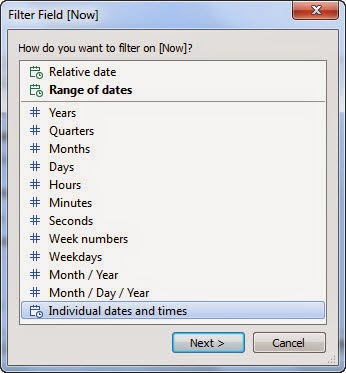
And then 'exclude' the single timestamp you see in there:

Your extract window should look like this and then you can click 'Extract':
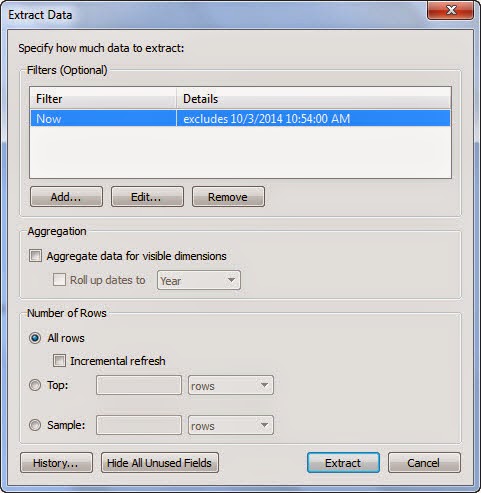
This should build an extract file that has 0 rows of data in it. You can see this by right-clicking on the data source and choosing 'Extract->History':
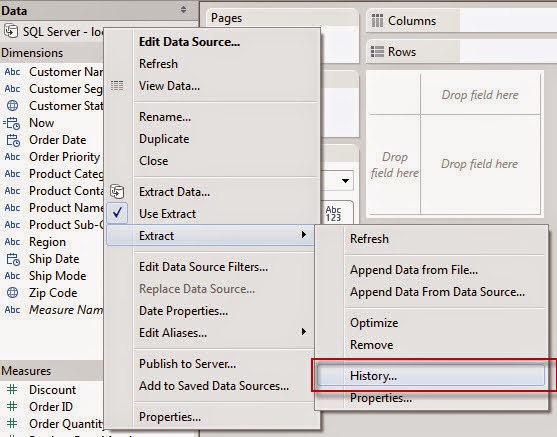
See that it imported 0 rows (my timestamp is slightly different than before because I had to take new screenshots):

Note: If it didnt work it is probably because the minute has changed and the timestamp we excluded is too old. If this is the case, change back to a live connection, then right-click the datasource and choose 'Refresh' (or click F5) to dump the cache and send a new query. This will also update the timestamp to the current time and you can try again.
Now after you publish your workbook and either run the extract refresh schedule, or just pick 'Run Now', it will populate the full extract:


Yay our workbook now has data in it and we never had to build the giant extract on our desktops before publishing!

-The Don Data
